User guide
This guide covers everything you need to plan sessions, animate match moments and share squads across your club.
Getting started
Tactix Board is a tactics board for grassroots and youth coaches. You can set out players on a pitch, draw arrows and zones, animate a move frame by frame and export it as a video for your players and parents. It runs in your web browser on an iPad, an Android tablet, a laptop or a desktop computer.
- Go to tactixboard.app and tap Open the board. You can start straight away without an account. Your work is saved on that device.
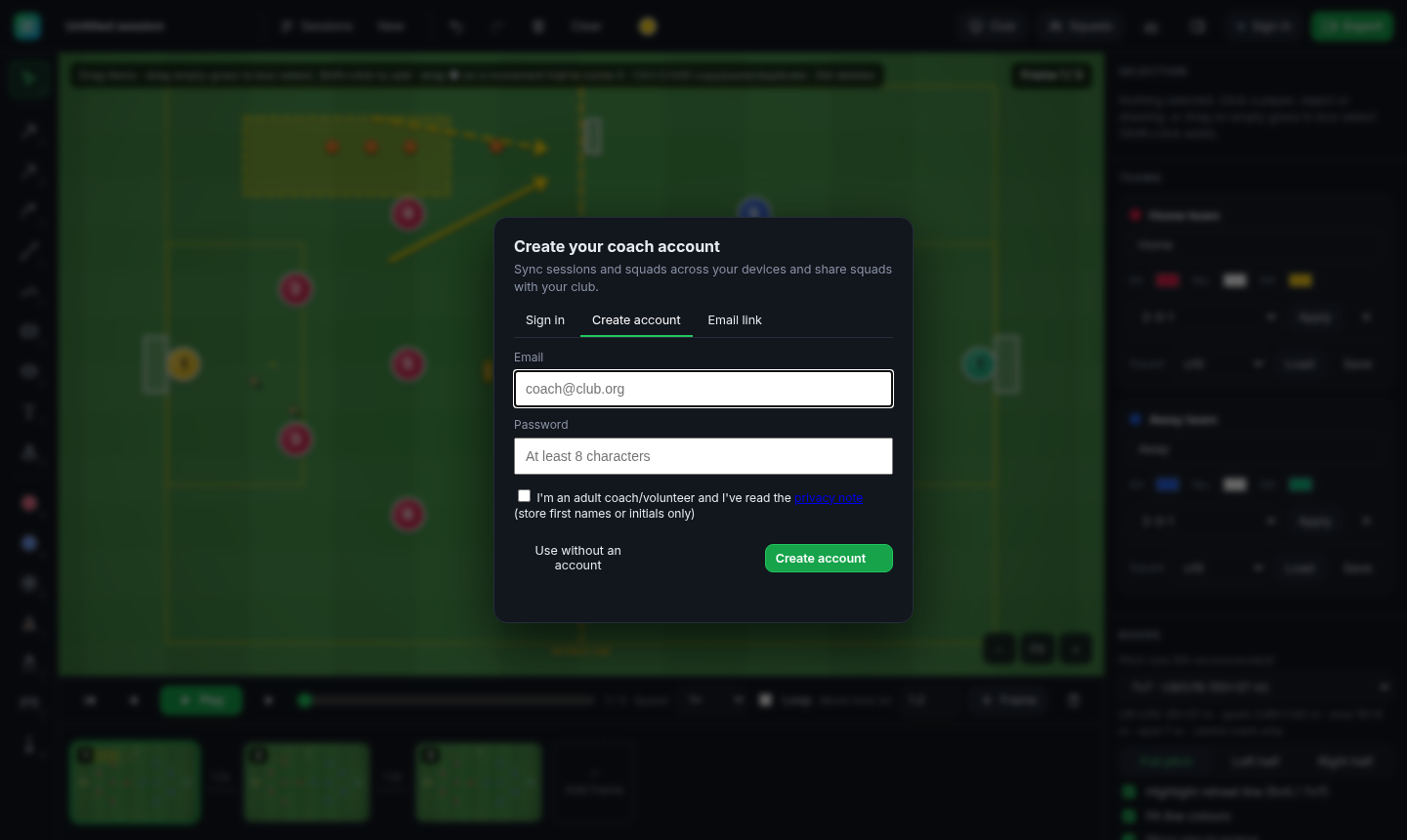
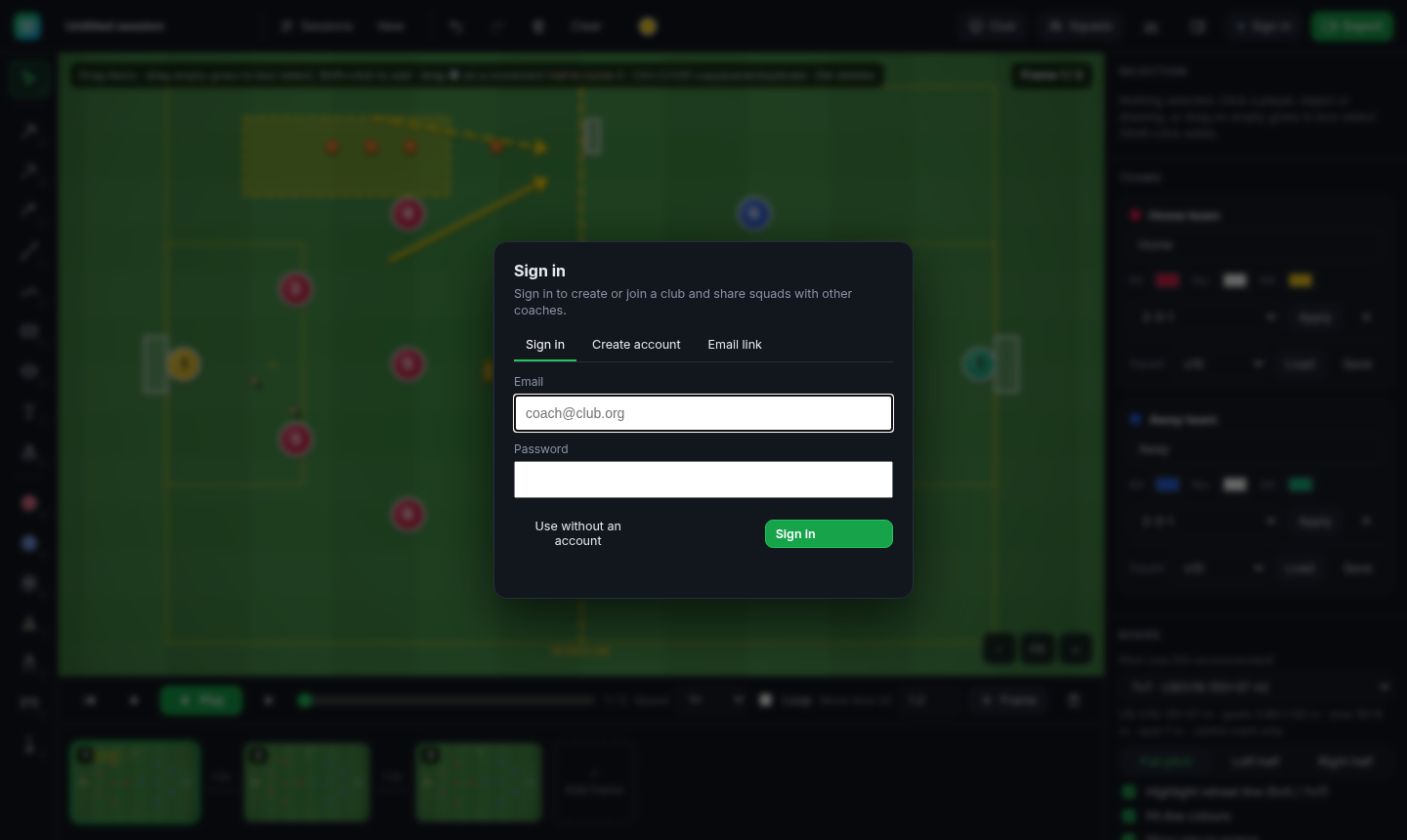
- To keep your work safe and use it on more than one device, create a free account. On the home page, enter your email and a password (at least 8 characters), tick the box to confirm you're an adult coach or volunteer, and tap Create free account. You can also do this in the app by tapping Sign in (top right) and choosing Create account.
- Click the link in the confirmation email from Tactix Board. Next time you can sign in with your password, or choose Email link to get a one-tap sign-in link.
When you're signed in, your sessions and squads sync automatically. The badge in the top-right corner shows whether everything has synced. If you're offline, changes are kept on the device and sync when you're back online.
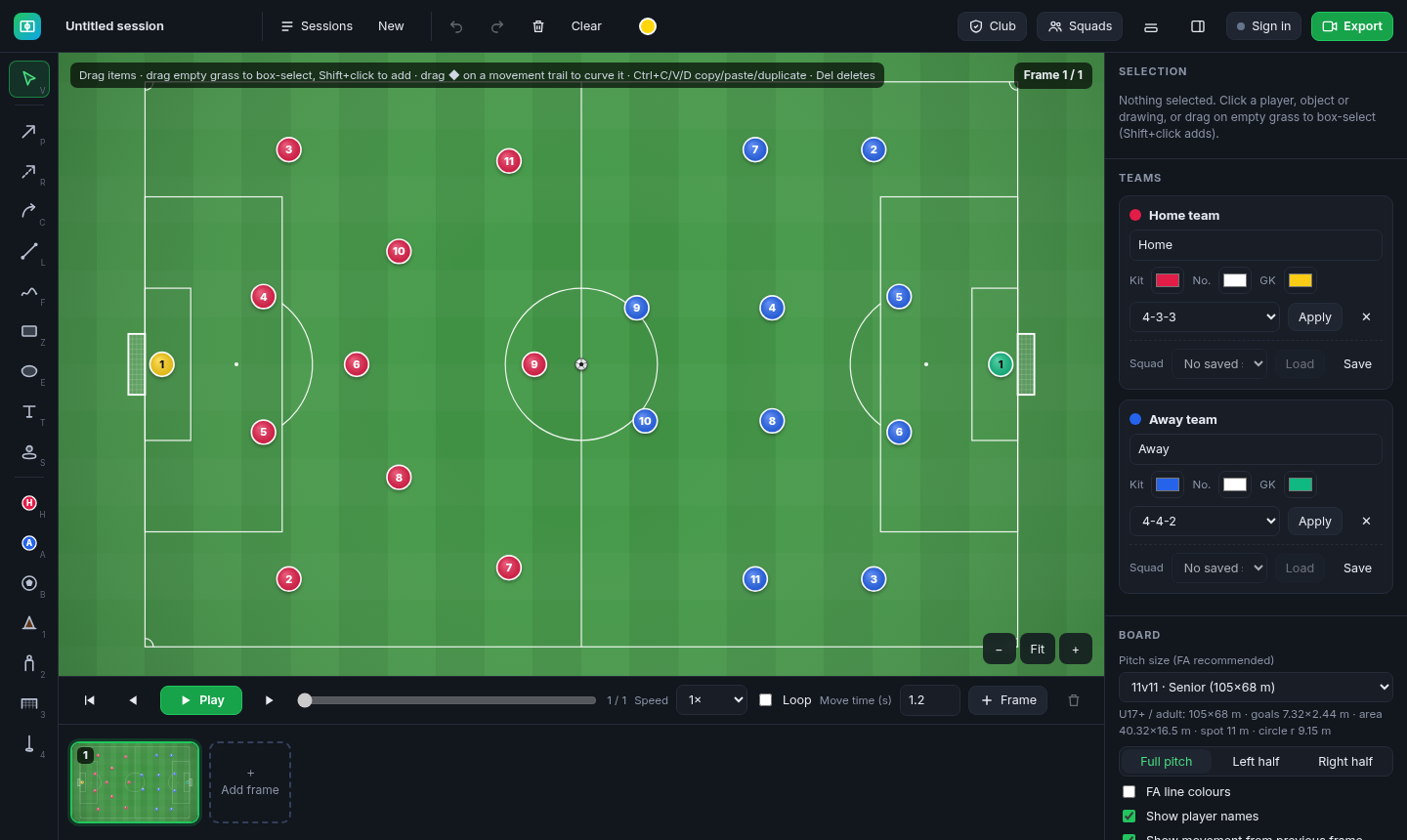
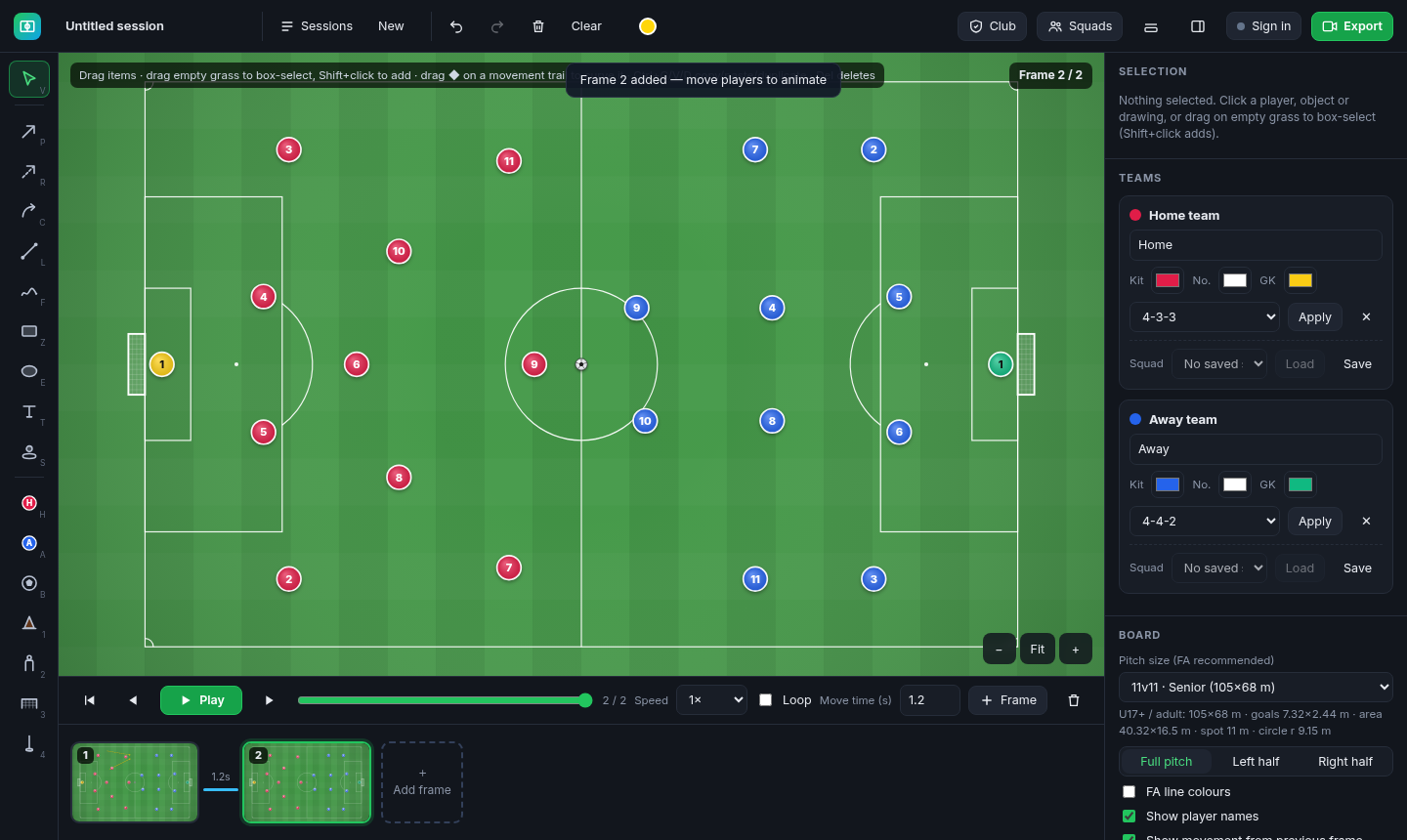
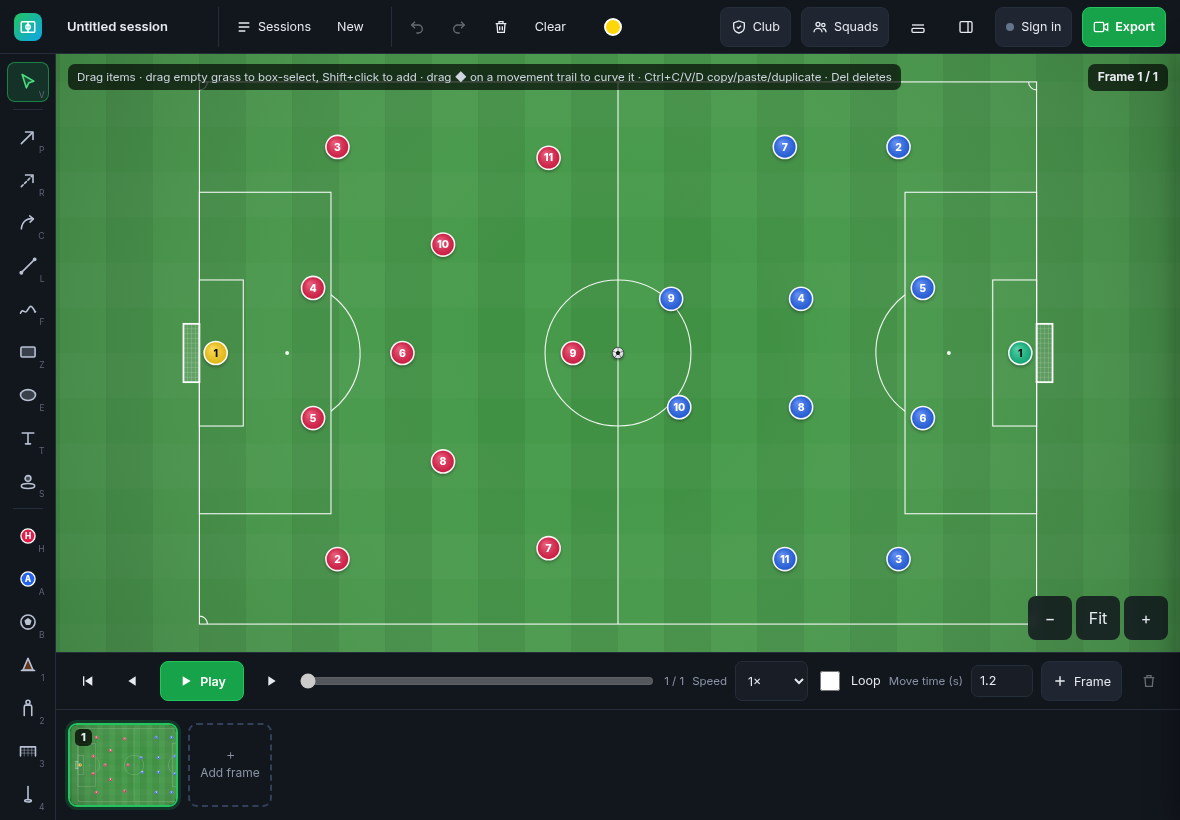
Layout: the drawing tools are on the left. The pitch is in the middle, with zoom buttons (−, Fit, +) in its corner. The timeline is underneath, and the side panel on the right holds selection, team and pitch settings. The panel button at the top right hides the side panel, and the timeline button hides the timeline, which is handy on smaller screens.
Pitch types and FA small-sided sizes
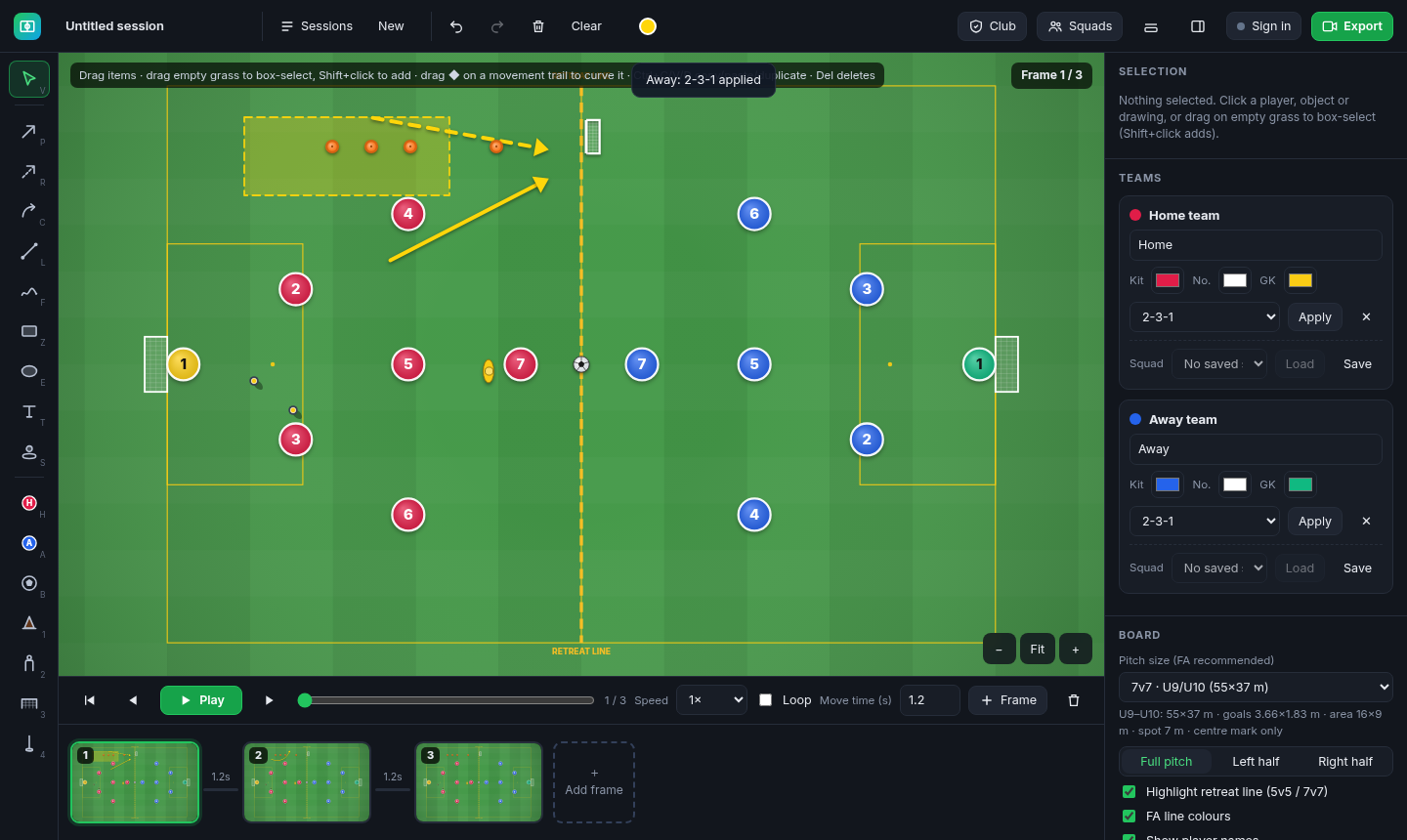
Under Board → Pitch size, choose a pitch that matches the age group. The sizes follow the FA's recommended dimensions for each format:
| Format | Age group | Pitch size | Goal size |
|---|---|---|---|
| 5v5 | U7–U8 | 37 × 27 m | 12 × 6 ft |
| 7v7 | U9–U10 | 55 × 37 m | 12 × 6 ft |
| 9v9 | U11–U12 | 73 × 46 m | 16 × 7 ft |
| 11v11 | U13–U14 | 82 × 50 m | 21 × 7 ft |
| 11v11 | U15–U16 | 91 × 55 m | 8 yd × 8 ft |
| 11v11 | U17+ / adult | 105 × 68 m | 8 yd × 8 ft |
The markings below the list show the exact box, spot and goal measurements for the size you've picked. If you change the size, the players, paths and drawings are rescaled to the new pitch, and you can undo the change.
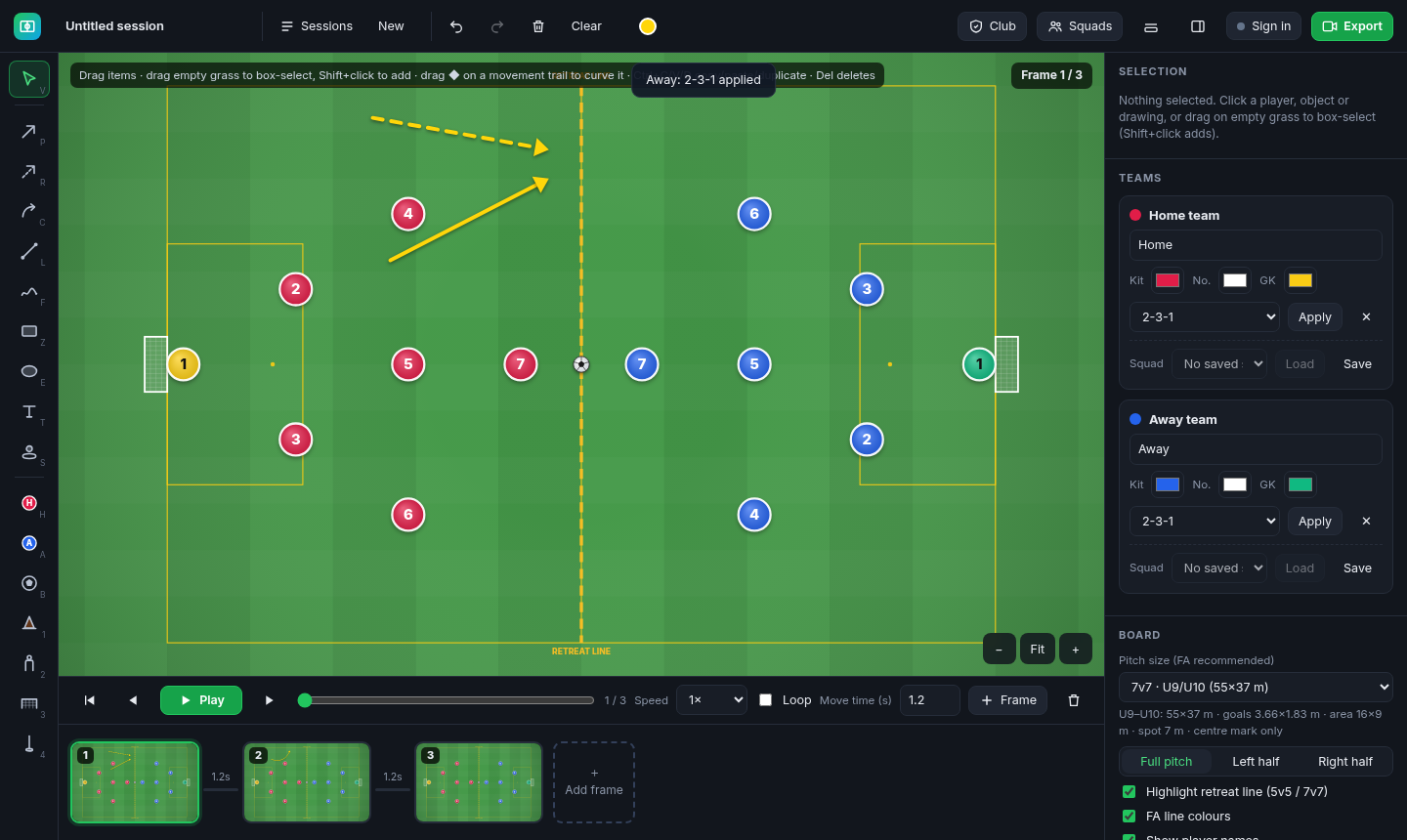
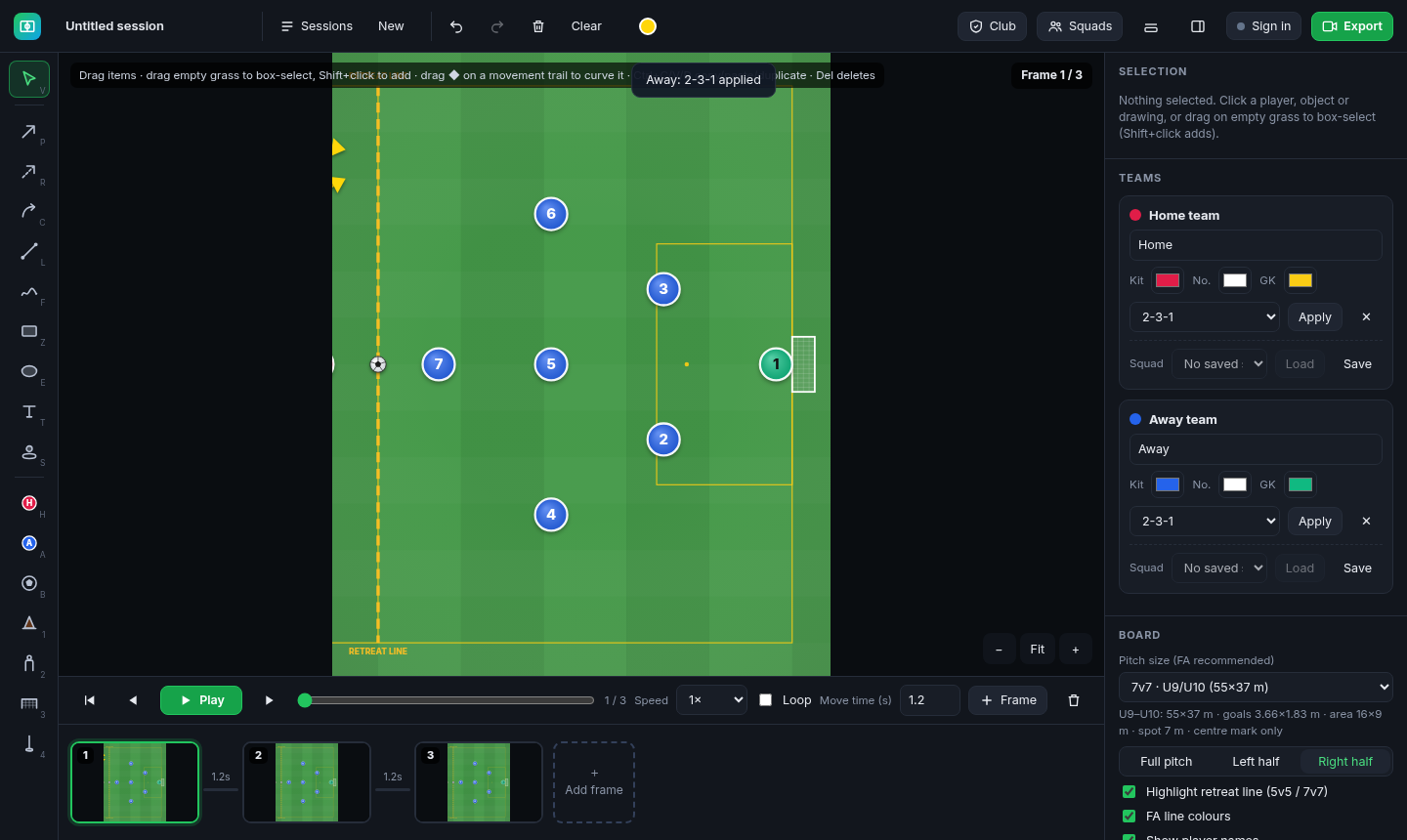
- Full pitch / Left half / Right half shows the whole pitch or zooms in on one half, which suits drills and set pieces.
- FA line colours colours the lines the way the FA does for each format: red for 5v5, yellow for 7v7 and blue for 9v9.
- Highlight retreat line (5v5 and 7v7) marks the halfway line, which is the retreat line in mini-soccer.
Players, the ball and equipment
Each tool has a keyboard shortcut, shown as a small letter on its button. When you pick a tool, a hint at the top of the pitch explains how to use it.
| Tool | Key | What it does |
|---|---|---|
| Select & move | V | Tap to select, drag to move |
| Home player / Away player | H / A | Click on the pitch to add players |
| Ball | B | Place a ball |
| Cone, Mannequin, Mini-goal, Pole | 1, 2, 3, 4 | Training equipment |
| Pass arrow / Run arrow (dashed) / Curved arrow | P / R / C | Show passes and runs; these also drive the animation (see below) |
| Line / Freehand | L / F | Draw lines |
| Zone: rectangle / ellipse | Z / E | Shade an area |
| Text label | T | Add a text note on the pitch |
| Spotlight player | S | Put a ring around a player on this frame |
Teams: in the side panel you can name each team, set the kit, number and goalkeeper colours, and pick a formation, then tap Apply. There are 11-a-side formations (4-4-2, 4-3-3, 4-2-3-1, 3-5-2, 4-1-4-1, 5-3-2) and small-sided ones (3-3-2, 3-2-3, 3-4-1, 2-3-1, 3-2-1, 3-1-2, 2-1-1, 1-2-1). Tap ✕ to take a team off the board.
Select a player to edit their number, name, role and notes in the side panel. Any player notes you add are listed under Scouting notes. Use Session notes for your objectives and coaching points. The colour dot in the top bar sets the ink colour for drawings.
Selecting several items at once
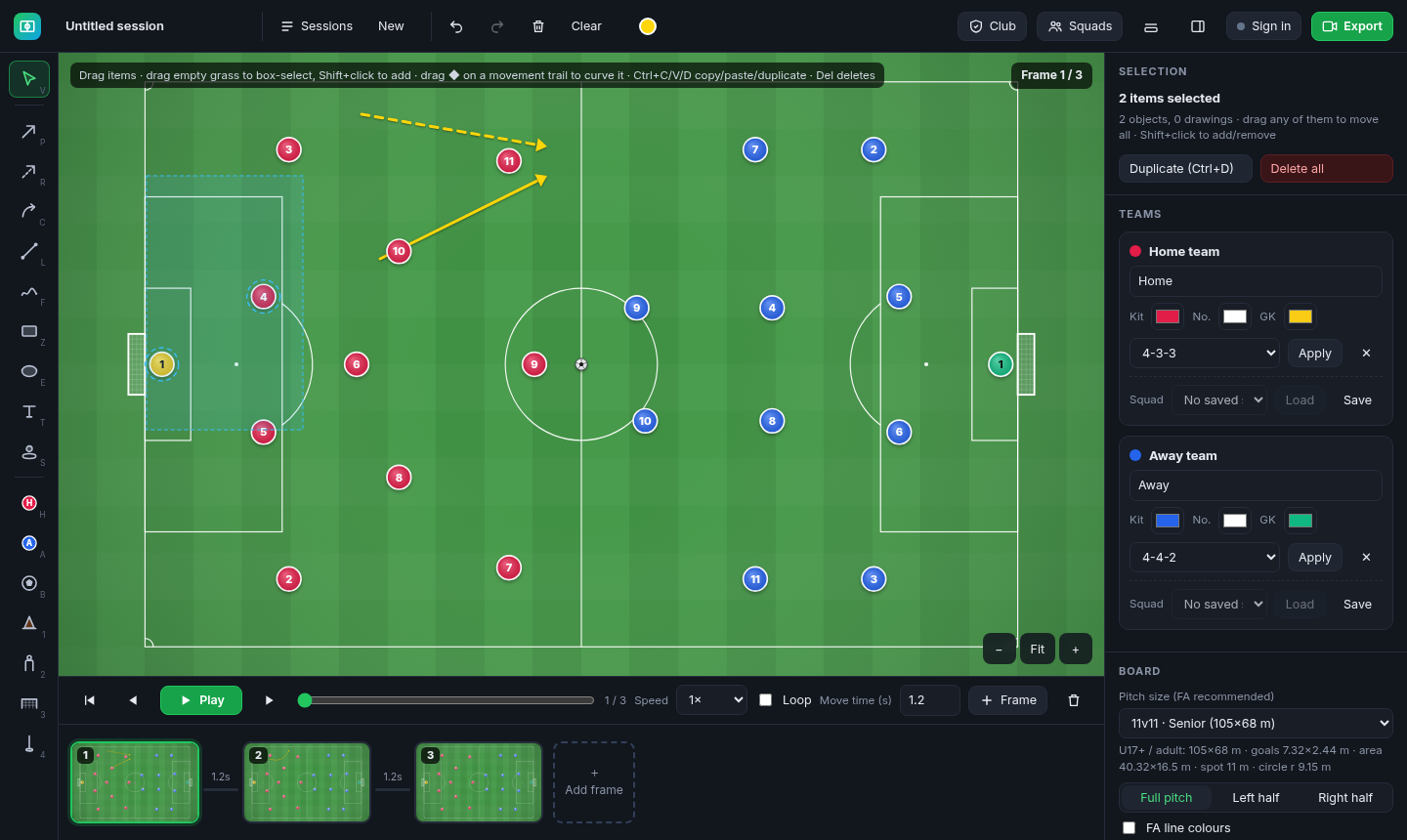
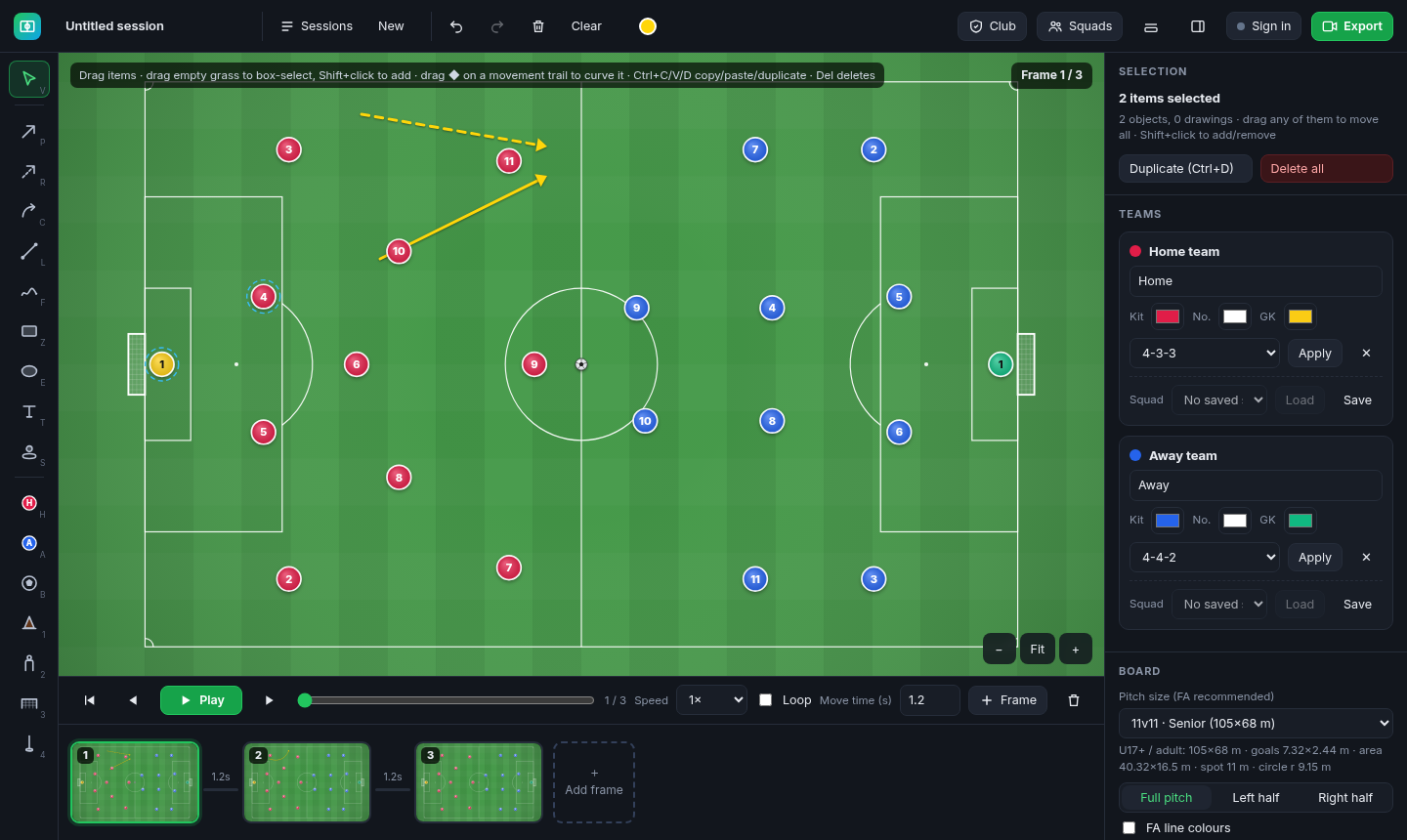
- With the Select tool, drag across empty grass to draw a box. Everything inside it is selected.
- Shift+click adds an item to the selection or removes it.
- Drag any selected item to move the whole group. Press Del (or tap the bin) to delete them, and use [ and ] to rotate them in 15° steps.
- Ctrl+C / Ctrl+V copies and pastes, Ctrl+D duplicates, and Ctrl+A selects everything. Esc clears the selection. On a Mac, use Cmd instead of Ctrl.
Animating with frames and curved paths
An animation is a series of frames, like slides. On each frame you put players and the ball where they should be. Tactix Board moves everything smoothly between frames.
- Set up the starting positions on frame 1.
- Draw a pass arrow starting on the player with the ball, or a run arrow starting on a player.
- Tap + Frame (or press N) to add the next frame. If New frame follows arrows drawn from players is ticked in the Board settings, the ball and players move along your arrows automatically. Otherwise, drag them to their new positions yourself.
- Repeat for each phase of the move.
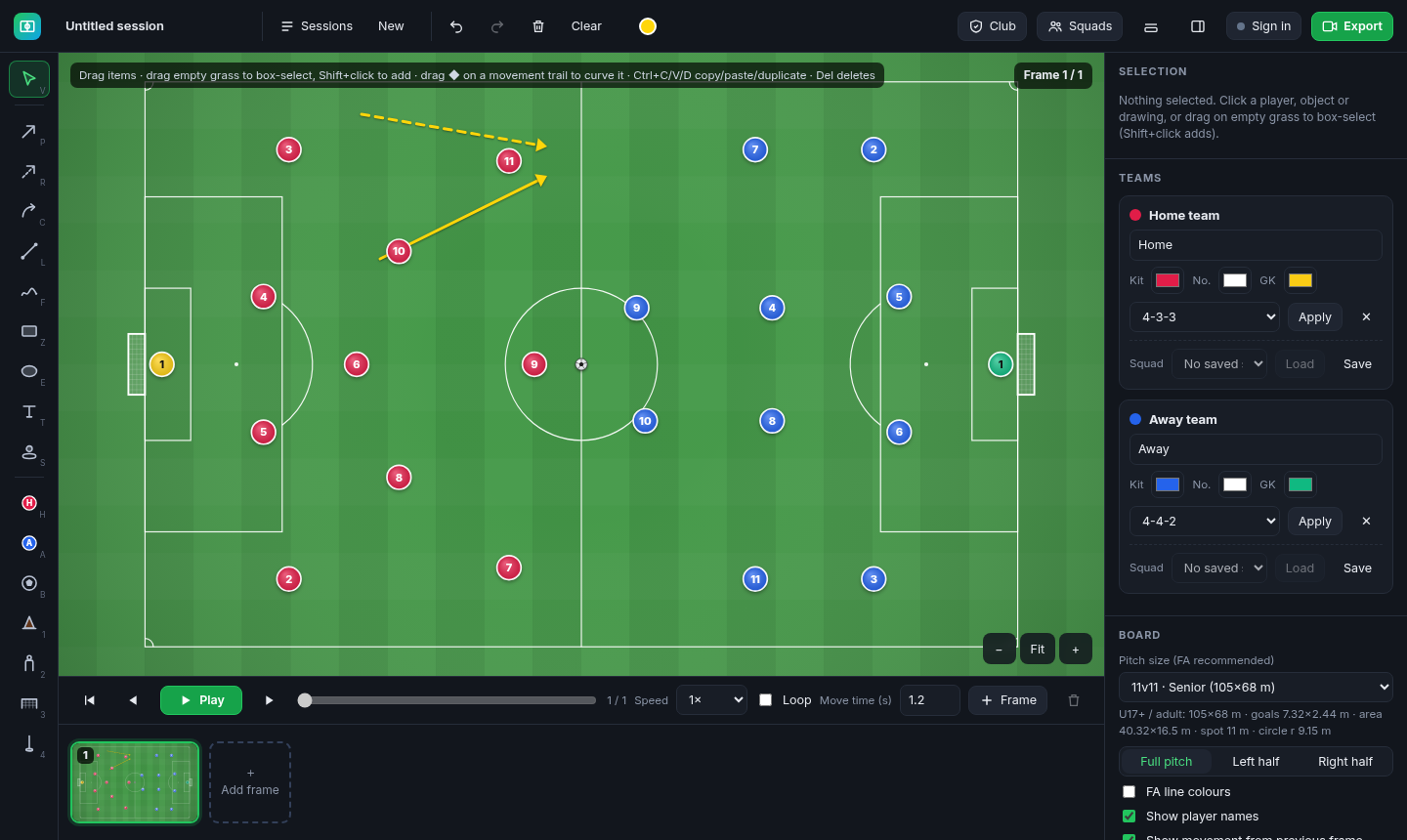
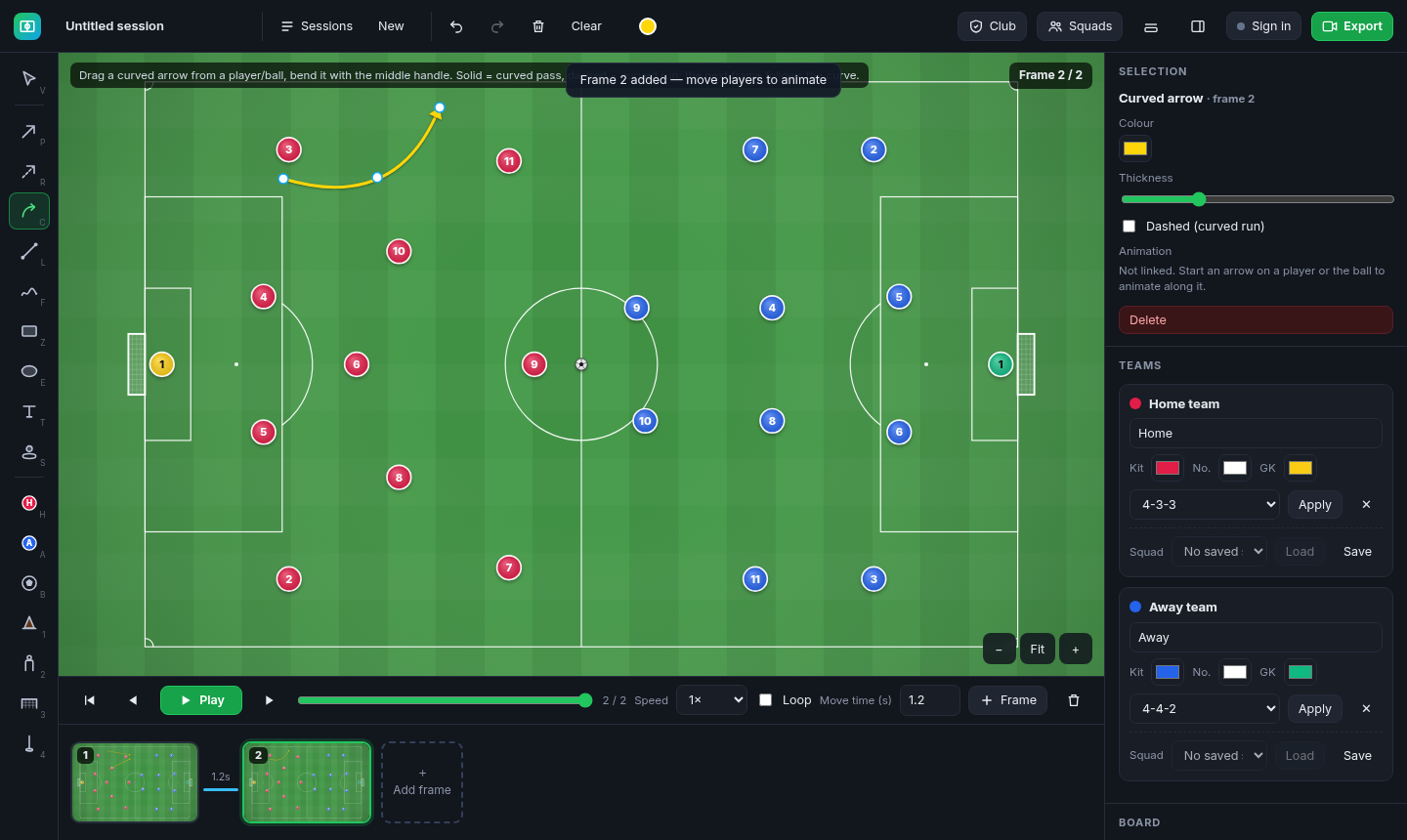
Curved paths: use the Curved arrow tool (C) and bend it with its middle handle. A solid curve is a curved pass, a dashed one is a curved run, and the next frame follows the curve. Any movement between frames can be curved too: select the player and drag the blue ◆ on their movement trail. The side panel tells you whether a path is straight or curved.
Other Board options: Show movement from previous frame displays the trails, and Copy drawings into new frames carries your arrows and zones forward. Clear removes the drawings on the current frame. Undo and redo (Ctrl+Z / Ctrl+Y) cover all of these changes.
Playback
The timeline sits under the pitch.
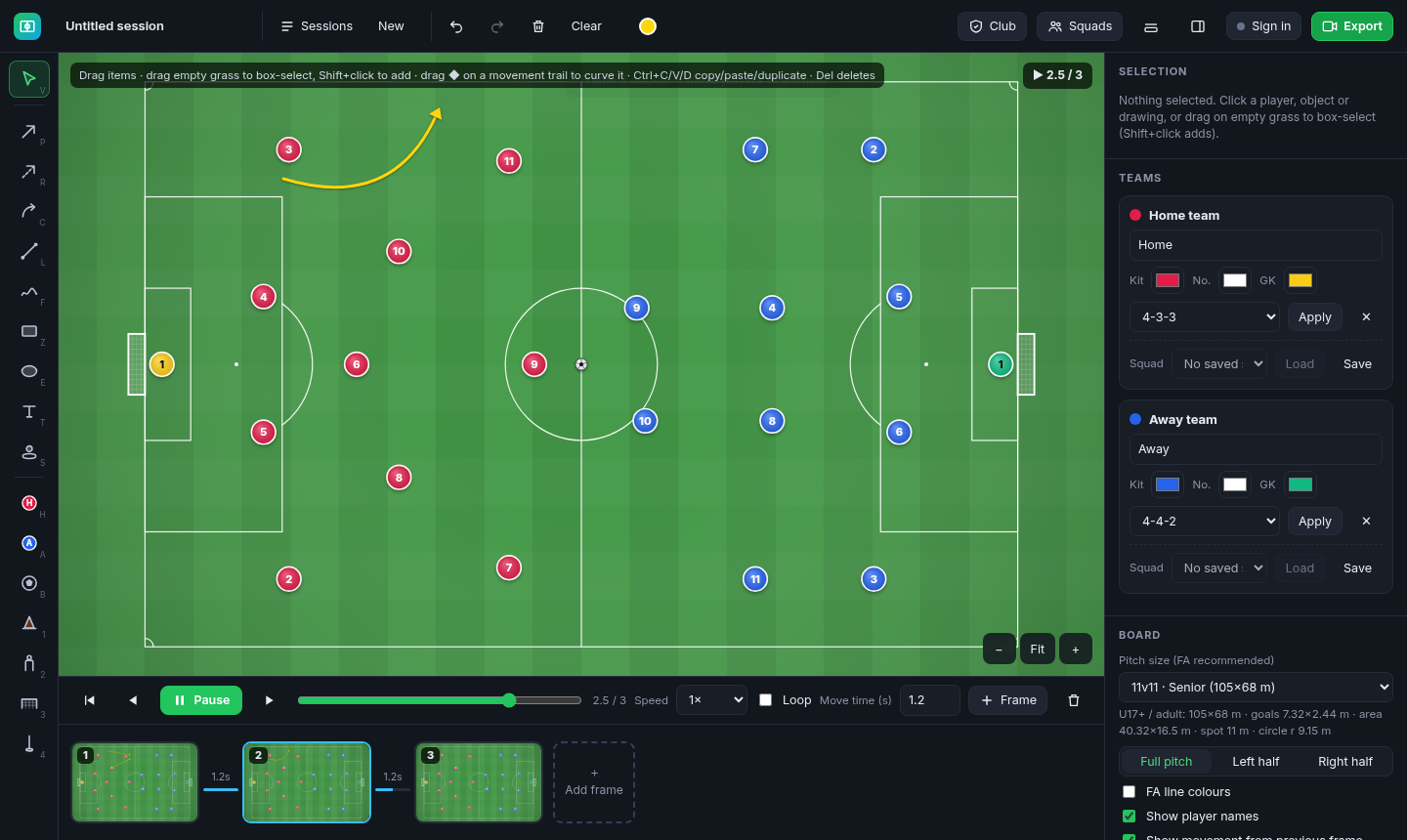
- Play (Space) plays the animation. Use the arrow buttons or the ← and → keys to step between frames, and Home to go back to the first frame.
- Drag the scrubber to move through the animation by hand.
- Speed plays it at 0.25×, 0.5×, 1×, 1.5× or 2×. Tick Loop to repeat it.
- Move time sets how many seconds it takes to get from the current frame to the next (0.2–10 s). This lets you slow down the key moment.
- Tap a thumbnail in the frame strip to jump to that frame. The bin deletes the current frame.
Exporting images and video
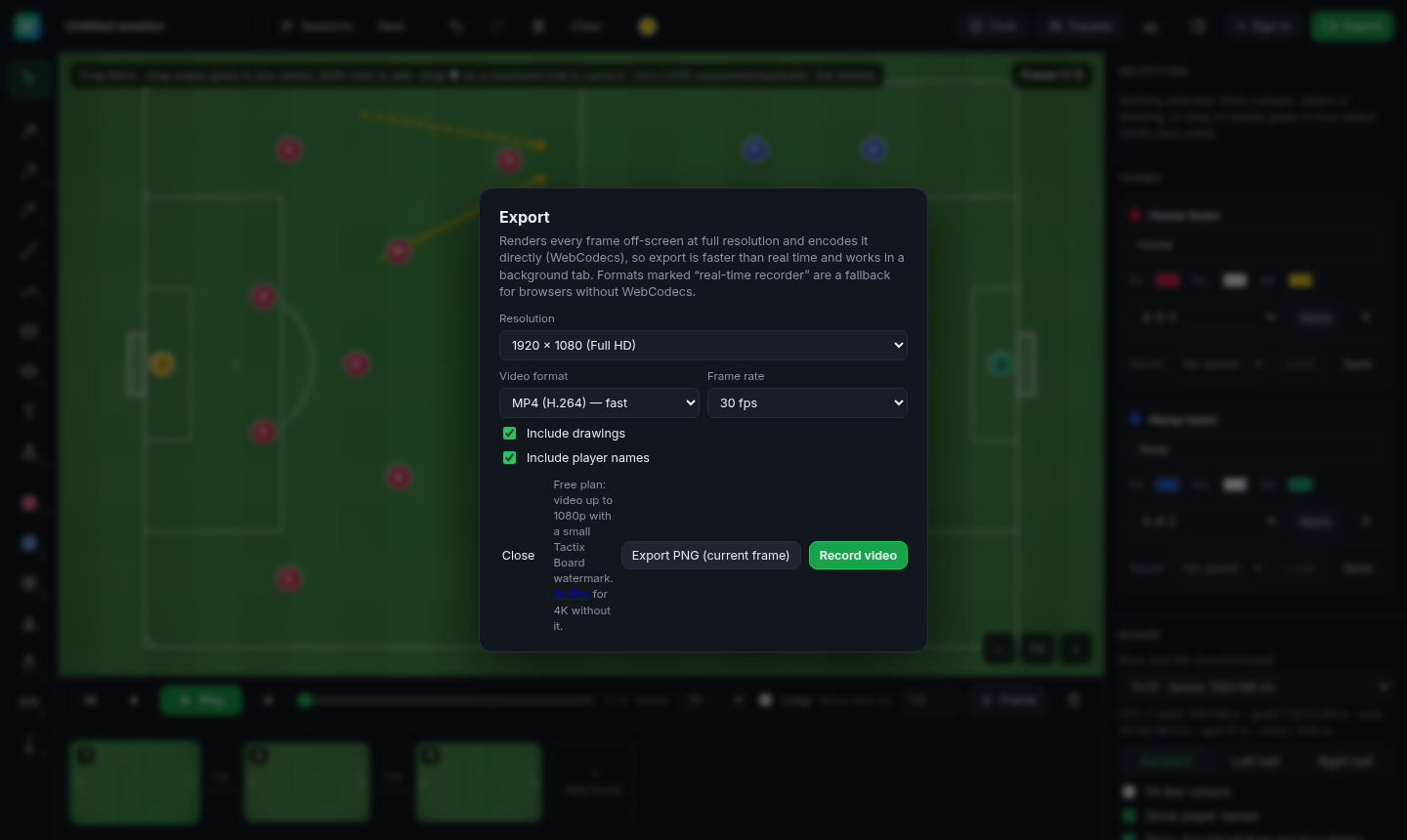
Tap Export (top right).
- Export PNG saves the current frame as an image. The image button in the top bar does a quick 1920×1080 PNG.
- Record video turns the whole animation into a video you can share in your team WhatsApp group or show on a screen. Choose the resolution (HD 720p, Full HD 1080p, QHD 1440p or 4K), the format (MP4 or WebM, depending on what your browser supports) and 30 or 60 fps. You can also choose whether to include drawings and player names.
On the Free plan, video goes up to Full HD and has a small "Made with Tactix Board" watermark. Pro removes the watermark and unlocks QHD and 4K. Video export needs a recent browser: up-to-date Chrome, Edge and Safari all work. If a format says "Not supported in this browser", try another browser.
Squad library and CSV/XLSX import/export
Save your squads once and drop them onto the board whenever you need them. This is really handy if you coach more than one age group. Tap Squads in the top bar.
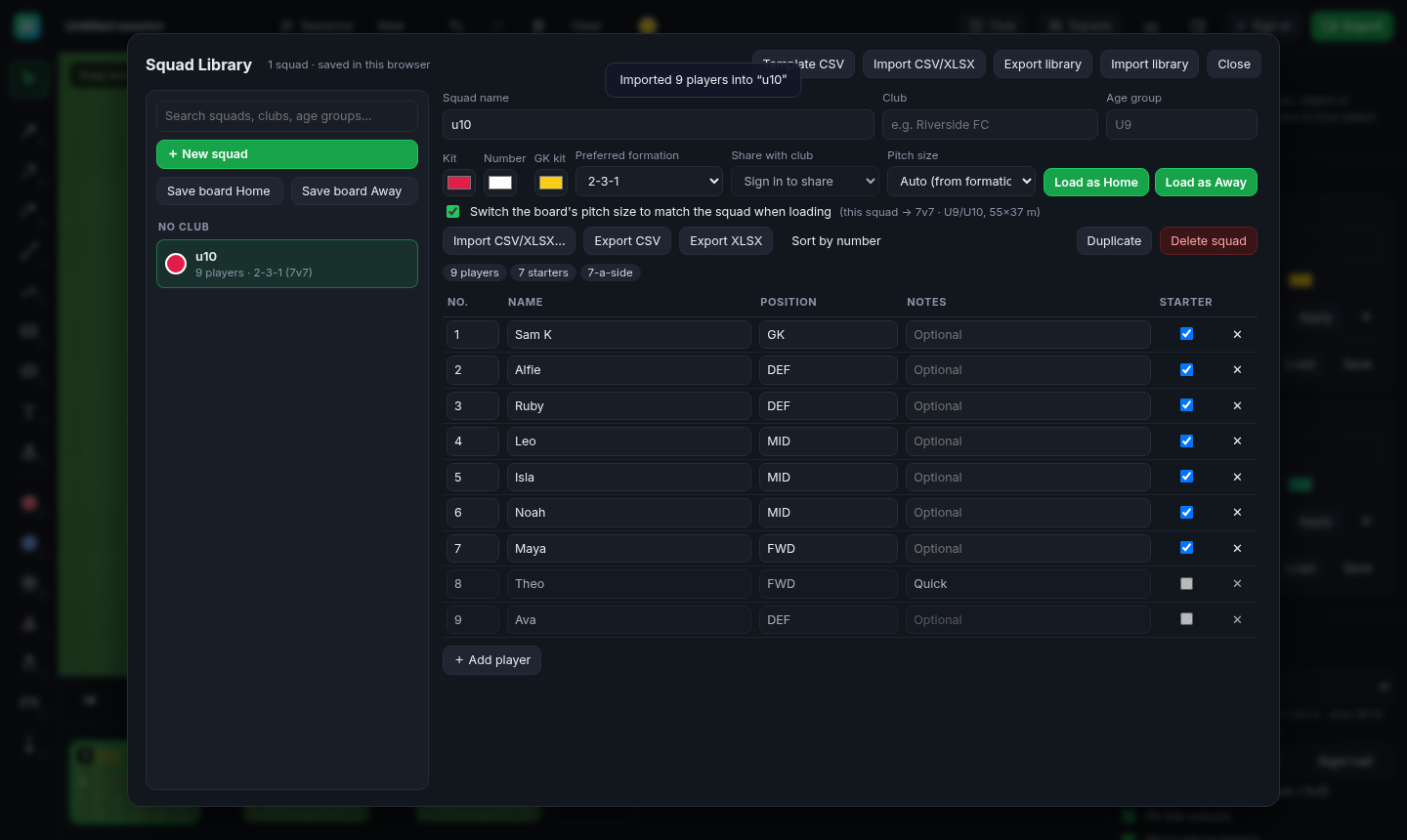
- + New squad creates a squad. Give it a name, club and age group, then add each player's number, name, position, notes and whether they start or come off the bench.
- Save board Home / Save board Away saves the team that's on the board as a squad.
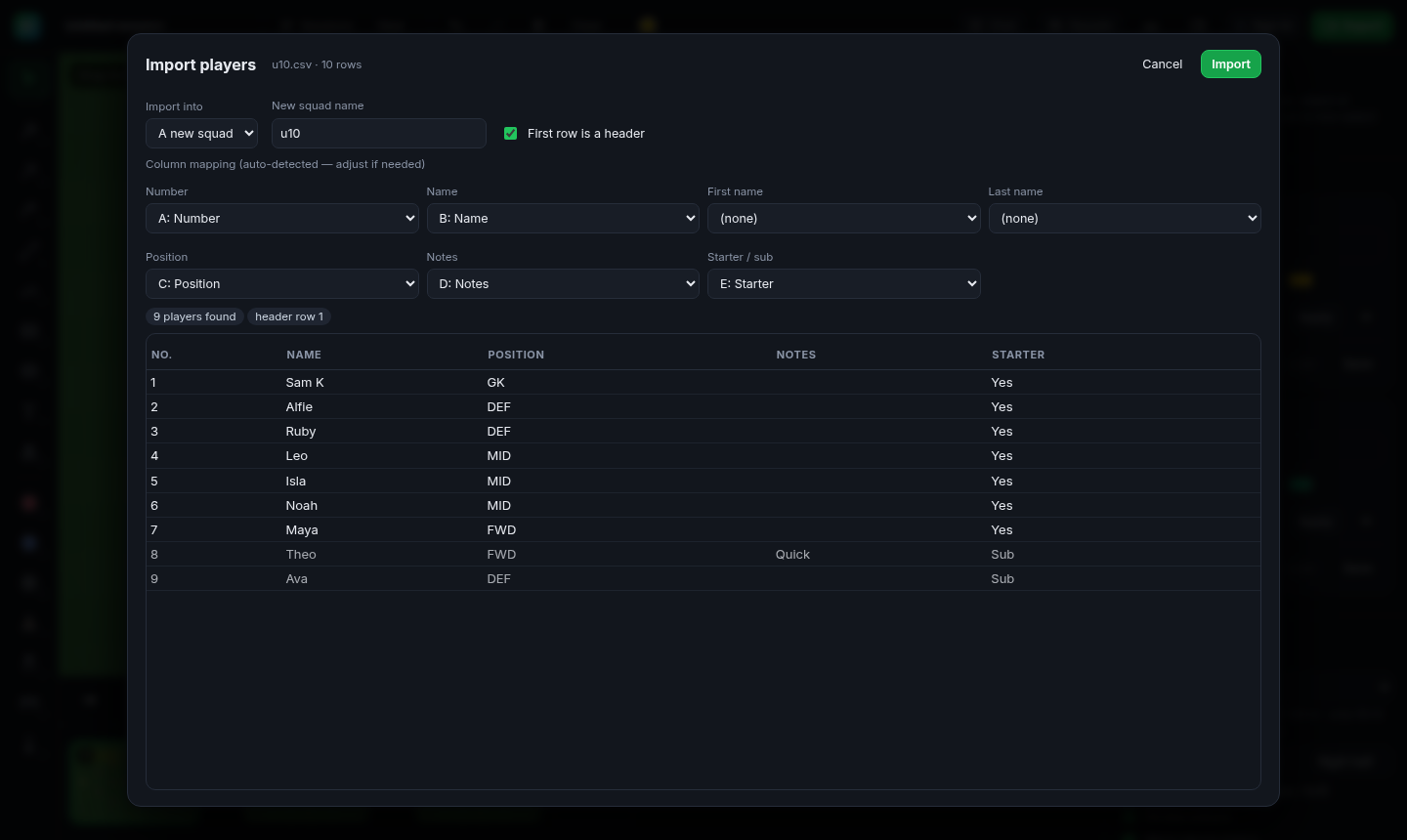
- Import CSV/XLSX creates a squad from a spreadsheet. Tactix Board spots columns such as Number, Name (or First name and Last name), Position, Notes and Starter. You then check the column matches and the preview before you import. Template CSV downloads a blank sheet to fill in with Excel or Google Sheets.
- Export CSV / Export XLSX on a squad downloads that squad as a spreadsheet.
- Export library / Import library saves every squad as one file, or merges one in. Use it for backups or to pass squads to another coach.
- Load as Home / Load as Away puts the squad on the board. Tick Switch the board's pitch size to match the squad and the pitch changes to fit the squad's age group, for example 7v7 for U10s.
Squads are grouped by age group, and you can search them by squad, club or age group. You can also load a saved squad from the Squad drop-down in each team's panel.
Privacy tip: only store what you need about players, such as first names or initials, shirt numbers and positions. Don't add dates of birth, contact details or medical information.
Saving and opening sessions
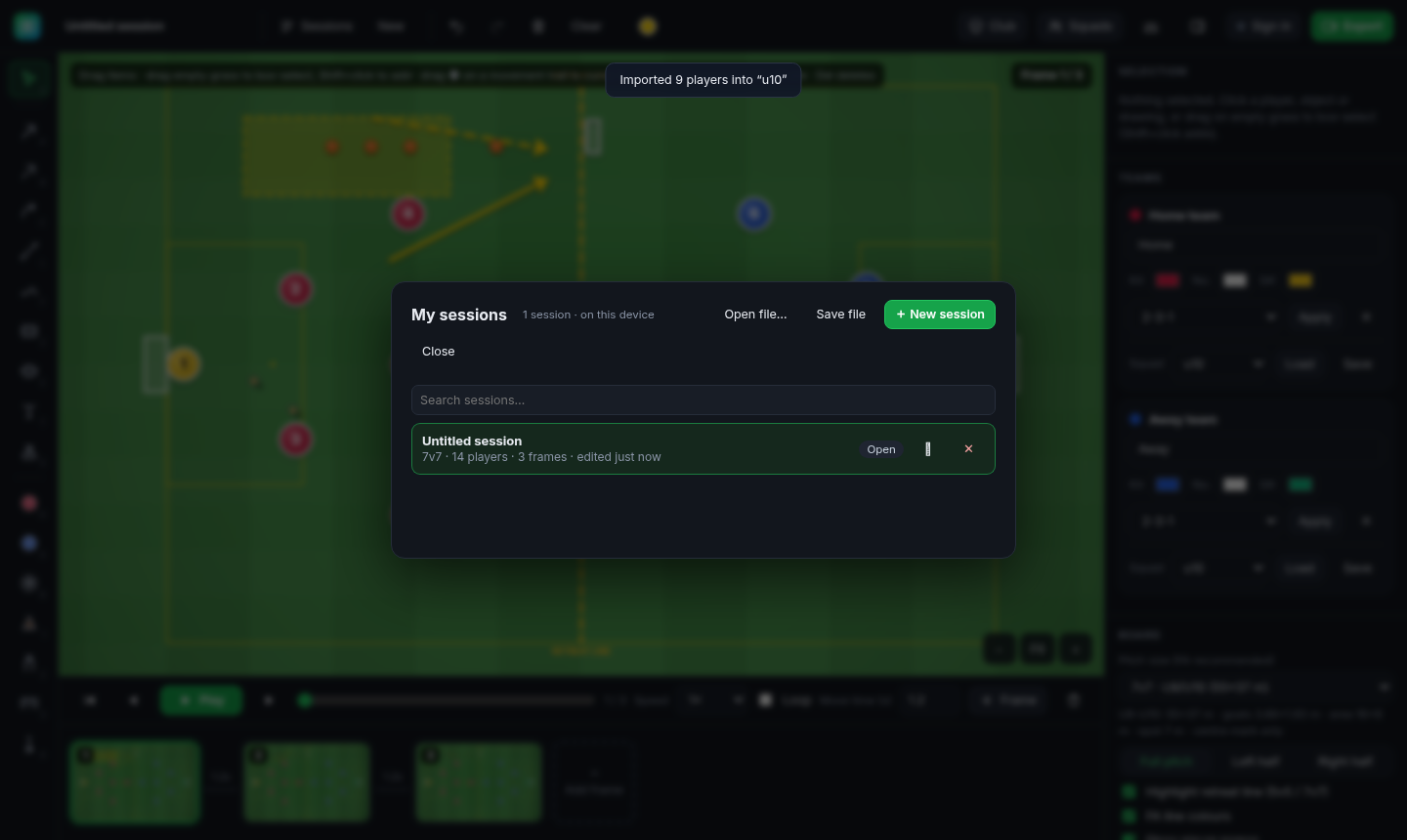
The board saves as you work. Sessions lists everything you've saved on this device, plus your account's sessions if you're signed in. You can search, open or delete sessions there and start a + New session. Rename a session by tapping its name at the top left.
Save file / Open file (Ctrl+S) downloads a session as a .json file or opens one. You can use this to email a session to another coach or keep a backup.
Sharing with your club
Clubs let coaches at the same club share squads by age group. Tap Club in the top bar. You need to be signed in.
- Create club: enter the club name. You become the club's owner.
- Invite coaches: share the club's 8-letter invite code, or copy the invite link. Anyone who opens the link is asked to sign in or create an account, then joins your club. You can create a new code at any time.
- Join club: enter a code you've been given.
- Share a squad: choose the club in the squad's settings, and other coaches in the club will see it. Sharing squads needs Pro or a club coach seat.
- Roles: the owner can make other coaches admins. Owners and admins manage the club's coach seats.
Using it offline and installing it on a tablet
Tactix Board works without an internet connection once you've opened it. That makes it ideal for pitches with no signal. Install it so it opens like an app:
- iPad / iPhone (Safari): tap Share, then Add to Home Screen.
- Android (Chrome): tap the ⋮ menu, then Install app (or Add to Home screen).
- Desktop Chrome / Edge: click the install icon in the address bar.
Pinch to zoom and drag with your finger, just as you would with a mouse. Changes you make while signed in and offline sync when you reconnect.
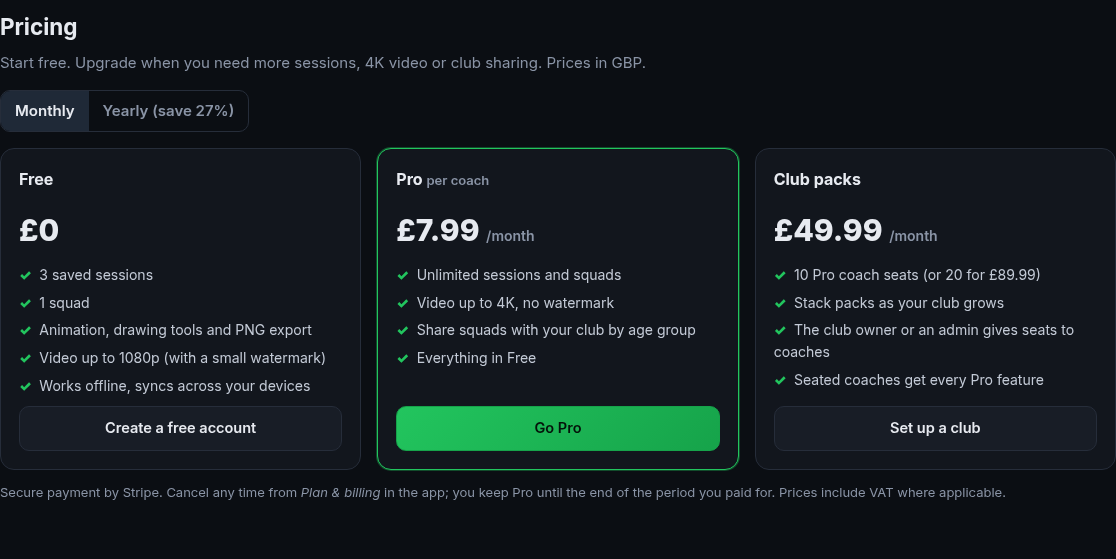
Free, Pro and Club plans
| Free | Pro | Club packs | |
|---|---|---|---|
| Price | £0 | £7.99/month or £69.99/year | 10 coaches: £49.99/month or £499/year 20 coaches: £89.99/month or £899/year |
| Saved sessions | 3 | Unlimited | Unlimited for each seated coach |
| Saved squads | 1 | Unlimited | Unlimited |
| Video export | Up to Full HD (1080p), with watermark | Up to 4K, no watermark | |
| Share squads with a club | No | Yes | |
Every plan includes all the drawing, animation, pitch, import/export and offline features. Prices include VAT. Clubs and businesses can add their VAT number at checkout.
Club packs give a club Pro seats to hand out. Packs can be stacked, so you can buy more than one, or mix 10- and 20-coach packs, as your club grows. In the Club window, owners and admins tap Give seat or Remove seat next to each coach. A coach with a seat gets Pro features while the club's subscription is active.
Managing your plan and billing
- Open Account → Plan & billing (or tap Upgrade) to see your current plan and to go Pro or buy club packs. Payment is handled securely by Stripe.
- From the same screen, open the billing portal to change between monthly and yearly, update your card, download invoices or cancel. If you cancel, you keep your paid features until the end of the period you've paid for.
- If you go over a Free limit, nothing is lost. Extra sessions or squads stay on your device and sync once you upgrade, or once you delete an old one.
Your account and your data
- Account → Export my data downloads everything stored in your account as a JSON file.
- Sign out can also remove your sessions and squads from that device. This is useful on a shared club tablet.
- Delete account permanently deletes your login, sessions and squads, and removes you from your clubs.
- Read the privacy note. For questions or requests about your data, email privacy@tactixboard.app.
Keyboard shortcuts
| Key | Action |
|---|---|
| V P R C L F Z E T S | Select, pass, run, curve, line, freehand, rectangle, ellipse, text, spotlight |
| H A B 1 2 3 4 | Home player, away player, ball, cone, mannequin, mini-goal, pole |
| Space / ← → / Home | Play or pause / previous or next frame / first frame |
| N | Add frame |
| Ctrl+Z / Ctrl+Y | Undo / redo |
| Ctrl+C / V / D / A | Copy / paste / duplicate / select all |
| Del, [ ] | Delete, rotate the selection |
| Ctrl+S | Save the session as a file |
| Esc | Clear the selection |